Setting up your Ubiquiti UniFi Dream Router 7
How to connect your Home Internet service to a Ubiquiti UniFi Dream Router 7. This guide will walk you through the steps to set up your router and get your internet connection up and running.
Unpacking your Dream Router 7
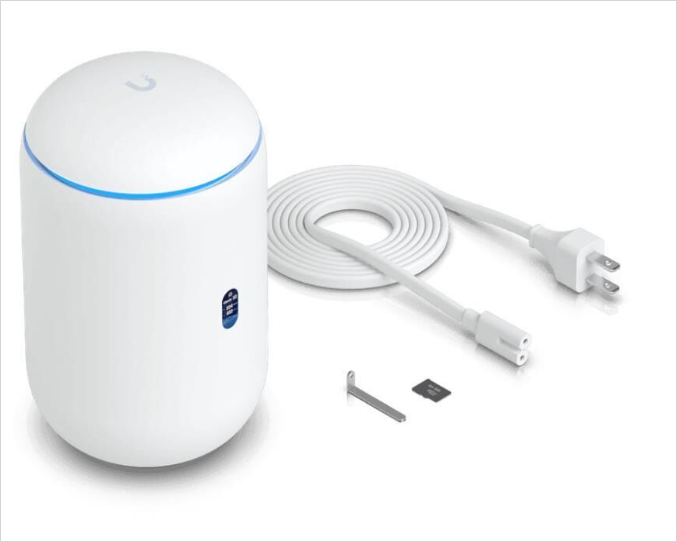
When you receive your Dream Router 7, it will come in a box with the following items as shown above.
- Ubiquiti UniFi Dream Router 7 (UDR7) device
- AC power cord
- Pre-installed 64GB microSD card (for UniFi Protect local storage)
- SD card ejector
- Quick-release tool
- Quick start guide
Connecting to your nbn device
Use an Ethernet cable to connect Port 4, shown below as WAN Port, on your Dream Router 7 to the Ethernet port on your nbn device.
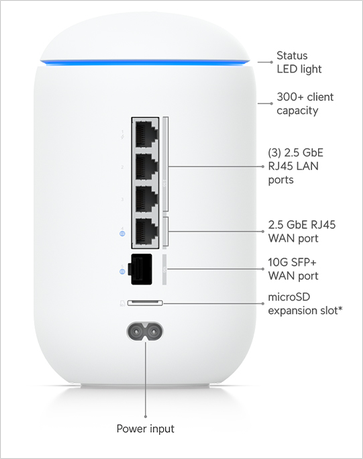
Power on your Dream Router 7 and wait for the status LED to turn solid white and the display should show "Ready for Setup". This indicates that your router is ready to be configured.
Configuring your Dream Router 7
The Dream Router 7 is configured using the UniFi Network mobile app. Download the app from the App Store or Google Play Store, ensure Bluetooth is enabled on your device,then follow the steps below.
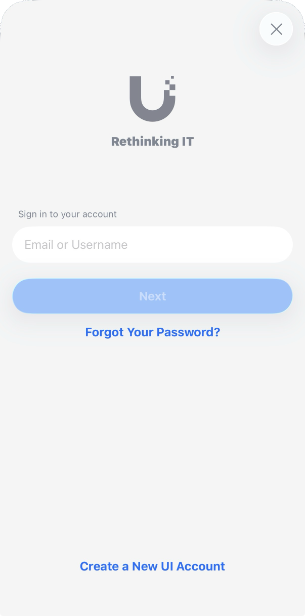
- On your mobile device, open the UniFi Network app and sign in with (or create) a Ubiquiti account.
- The app should discover your Dream Router 7 on the local network. Tap the router when it appears, then tap Set Up.
- The Name your Dream Router screen will appear. Enter a name for your router and set the Wifi Name (SSID) and password. Then tap Connect.
- The Setting Up Unifi OS screen will appear. Allow this process to complete, which will take a few minutes and may involve updating the router's firmware. Once complete, tap Go to Dashboard.
Connect to your new Wifi network
On your mobile device, connect to the new WiFi network you created in the previous step. You should now be connected to the internet through your Dream Router 7.
Connect wired devices to your Dream Router 7
You can connect wired devices to your Dream Router 7 using the LAN ports on the back of the router. Use an Ethernet cable to connect your device to the LAN ports 1, 2 or 3 on the router. Your device should now be connected to the internet through your Dream Router 7.